1.3. Using ilib:diverse
The main ilib:diverse window is composed of the following parts:
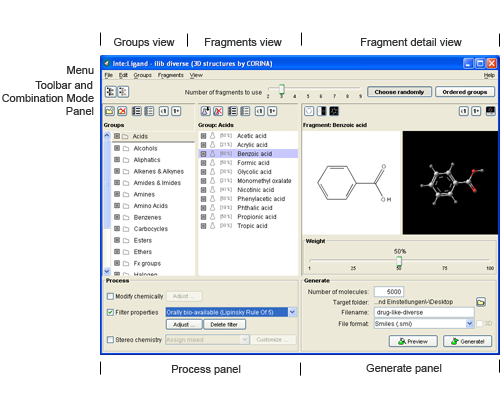
- Menu
- Tool bar — see Icons for details
- Combination mode panel
- Icons
- Groups view
- Fragments view
- Fragment detail view
- Flasks view
- Process panel
- Generation panel
The ilib:diverse menu
File menu
Open library
The open library command allows you to view SMILES- and SD-Files with the library inspector.
Save current fragments and settings as default
The save current fragments and settings as default command enables you to set your currently selected fragment set and property settings as default values. ilib:diverse will load these settings at startup.
Restore factory default fragments and settings
The restore factory default fragments and settings command allows you to reset your ilib:diverse fragments and settings to the factory values.
Import › fragment set and flasks
The import › fragment set and flasks option enables you to import your stored fragments, fragment groups and flasks.
Import › filter and process settings
The import › filter and process settings option allows you to load your saved filter sets and process properties.
Export › fragment set and flasks
The export › fragment set and flasks option enables you to export your designed fragments, fragment groups and flasks. Select your favourite directory and file name in the export dialogue.
Export › filter and process settings
The export › filter and process settings option allows you to store your created filter sets and process properties. Select your favourite directory and file name in the export dialogue.
Exit
Use the exit command to close the currently running ilib:diverse session. Be sure to save the modifications to your fragments, fragment groups and flasks before quitting.
Edit menu
Delete selected fragment
The delete fragment command allows you to erase the selected fragment(s) from your fragment set.
Delete item from selected flask
The delete item from selected flask command allows you to remove selected items from flasks.
Rename selected item
The rename selected item command enables you to rename groups and fragments of the fragment set.
Copy, cut and paste fragment
The copy (CTRL+C), cut (CTRL+X) and paste (CTRL+V) fragment commands allow you to easily manage and organize the items of your fragment set.
Groups menu
Use all groups
The use all groups option enables you to select all groups and their fragment contents.
Do not use any group
The do not use any group command allows you to deselect all groups and their fragment contents.
Create new group
The create new group option allows you to create a new fragment group in your fragment set.
Delete selected group and all contained fragments
The delete selected group and all contained fragments option allows you to delete the currently selected group and its contained fragments.
Use at least one fragment of the selected group
The use at least one fragment of the selected group command allows you to generate molecules that contain at least one fragment of the currently selected group.
Use at most one fragment of the selected group
The use at most one fragment of the selected group command enables you to generate molecules that contain at most one fragment of the currently selected group.
By selecting both use at least one fragment of the selected group and use at most one fragment of the selected group you may generate molecules that contain exactly one fragment of the current group.
Fragments menu
Import new fragments into current group
The import new fragment into current group option allows you to import MDL MOL Files or SMILES Files to the currently selected group of your fragment set.
Use all fragments of the selected group
The use all fragments of the selected group option enables you to select all fragments of the current group.
Do not use any fragment of the selected group
The do not use any fragment of the selected group option allows you to deselect all fragments of the current group.
Use selected fragment at least once
The use selected fragment at least once command enables you to generate molecules that contain the currently selected fragment at least once.
Use selected fragment at most once
The use selected fragment at most once option allows you to generate molecules that contain the current fragment at most once.
By selecting both use selected fragment at least once and use selected fragment at most once you may generate molecules that contain the currently selected fragment exactly once.
View menu
2D fragment viewer
Only 2D depiction. 3D depiction is disabled.
3D fragment viewer
Only 3D depiction. 2D depiction is disabled.
2D/3D fragment viewer
Both 2D and 3D depiction are enabled.
Icons
Tool bar
| Icon | Description |
|---|---|
 |
Enable all fragments of all groups |
 |
Disable all fragments of all groups |
Groups view
| Icon | Description |
|---|---|
 |
Create new group |
 |
Delete selected group and all contained fragments |
 |
Select all groups |
 |
Deselect all groups |
 |
Use at most one fragment of the selected group |
 |
Use at least one fragment of the selected group |
Fragments view
| Icon | Description |
|---|---|
 |
Import fragments into a group |
 |
Delete selected fragment(s) |
|
Select all fragments of this group |
|
Deselect all fragments of this group |
|
Use selected fragment at most once |
|
Use selected fragment at least once |
Fragment detail view
| Icon | Description |
|---|---|
|
Use this fragment at most once |
|
Use this fragment at least once |
 |
Edit reactivity — opens the atom reactivity editor |
 |
Show 2D view only |
 |
Show 2D and 3D view |
 |
Show 3D view only |
Flasks view
| Icon | Description |
|---|---|
 |
Add selected group to selected position |
|
Add selected fragment to selected position |
|
Remove selected items from flasks |
Key bindings
| Shortcut | Action |
|---|---|
F1 |
User manual, tutorials, examples |
CTRL + O |
Open library |
CTRL + S |
Save current fragments and settings as default |
CTRL + R |
Restore default fragments and settings |
CTRL + SHIFT + I |
Import fragment set and flasks |
ALT + SHIFT + I |
Import filter and process settings |
CTRL + SHIFT + E |
Export fragment set and flasks |
ALT + SHIFT + E |
Export filter and process settings |
CTRL + Q |
Exit |
SHIFT + DEL |
Delete selected fragment |
DEL |
Delete item from selected flask |
F2 |
Rename selected item |
CTRL + X |
Cut |
CTRL + C |
Copy |
CTRL + V |
Paste |
CTRL + A |
Use all groups |
CTRL + D |
Do not use any group |
CTRL + N |
Create new group |
CTRL + DEL |
Delete selected group and all contained fragments |
CTRL + L |
Use at least one fragment of the selected group |
CTRL + M |
Use at most one fragment of the selected group |
ALT + I |
Import new fragment into current group |
ALT + A |
Use all fragments of the selected group |
ALT + D |
Do not use any fragment of the selected group |
ALT + L |
Use selected fragment at least once |
ALT + M |
Use selected fragment at most once |
ALT + 2 |
2D fragment viewer |
ALT + 3 |
3D fragment viewer |
ALT + 4 |
2D/3D fragment viewer |
ALT + F |
File menu |
ALT + E |
Edit menu |
ALT + G |
Groups menu |
ALT + R |
Fragments menu |
ALT + V |
View menu |
ALT + H |
Help menu |