2. The ilib:diverse Fragment Set
ilib:diverse uses novel algorithms for combining chemical fragments to form molecules. The program is shipped with two basic fragment sets: the drug-like and the lead-like fragment set.
The drug-like fragment set is a customized pool of fragments for the generation of highly diverse drug-like compounds. As an addition, special fragments have been included as "pharm-groups" (e.g. cephem or phenotiazine). However, since these fragments are usually assigned to special drug types, they have been deselected by default. The lead-like fragment set is designed to generate molecules with low molecular weight and additionally includes fragments that are likely to be replaced during the further drug optimization process (e.g. to achieve higher metabolic stability).
The drug-like fragment set is used as default and can be restored anytime by selecting the restore factory default fragments and settings menu item.
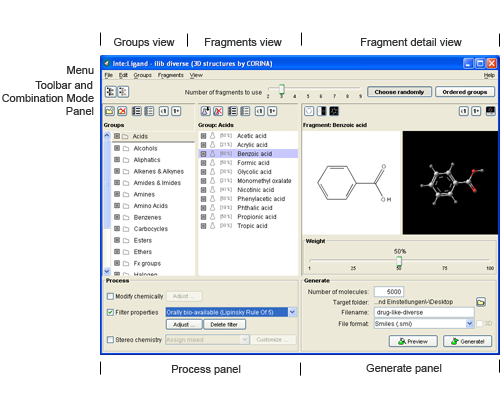
The following sub-sections describe how the main fragment set views work; see also Organizing the fragment set.
Groups
Fragment groups are an important tool for library generation and help to organize the ilib:diverse user-adaptable fragment set. Groups are easily adjustable by the user.
Creating a new group
You may add new groups to a fragment set by clicking on the  icon. You will then be prompted for a name for the newly created group.
Alternatively, you may use the create new group command from the groups menu.
Deleting a group
If you wish to delete the currently selected fragment group, click on the  icon. You will need to confirm this action so as not to delete any groups by mistake.
Alternatively, use the delete selected group and all contained fragments command from the groups menu.
Selecting/deselecting all groups
By clicking on the icons  or
or  you may select or deselect all fragment groups. Alternatively, use the use all groups and do not use any group commands in the groups menu.
Selecting/deselecting single groups
Select/deselect groups by clicking on the checkbox of each group in the groups view.
Adjusting the occurrence of fragments of selected groups in generated molecules
Use the icons  and
and  to control the frequency of occurrence of fragments from selected groups in the molecules to be generated.
By clicking on , at least one fragment from the currently selected group will be used for library molecule generation. Alternatively, use the use at least one fragment of the selected group command from the groups menu.
Clicking on will result in integrating at most one fragment from the selected group in molecule generation. Alternatively, use the use at most one fragment of the selected group command from the groups menu.
If both "use at least once" and "use at most once" are selected, ilib:diverse ensures that the specific fragment occurs exactly once in each library molecule.
Renaming a fragment
Use the rename selected item command from the edit menu to rename the current fragment. Alternatively, double-click on the item to be renamed or press F2 after selection.
Fragments
ilib:diverse uses a huge collection of fragments for the generation of compound libraries. Every fragment is assigned to a fragment group as shown in the screenshot above.
Adding fragments
Click on the  icon or use the import › fragment set and flasks command from the file menu to import new fragments (from SMILES files or MDL MOL files) to the current group.
Deleting fragments
Delete one or more fragments from the currently selected group by clicking on the  icon or by pressing
 SHIFT+DEL. Multiple fragments can be selected as described below.
Selecting/deselecting fragments
Click on the checkbox of each fragment in the fragments view to select/deselect fragments.
Hold down the SHIFT key for selecting a range of fragments. To select or deselect several single fragments hold down the CTRL key.
Select/deselect all fragments of the current group by clicking on the icons and . Alternatively, use the use all fragments of the selected group and do not use any fragment of the selected group commands from the fragments menu.
Adjusting the occurrence of fragments in generated molecules
Use the icons and to control the frequency of occurrence of the selected fragments in generated molecules.
By clicking on , the current fragment will be used at least once for library molecule generation. Clicking on will result in integrating the selected fragment at most once for building the library molecule.
When activating both modes the selected fragment(s) are used for the generation of all molecules. Alternatively, use the use selected fragment at least once and use selected fragment at most once commands from the fragments menu.
Renaming a group
Rename the currently selected group using the rename selected item command from the edit menu. Alternatively, rename a group by double-clicking or by pressing the F2 key after selection.
Fragment weight
The % indicators to the left of the fragment names indicate the weight of all fragments of the current group.
The fragment weight is a parameter that can be specified individually for each fragment and indicates the weight of a fragment with respect to random fragment selection. ilib:diverse chooses fragments randomly according to the user's constraints, i.e. according to the selected fragments or specified flasks. If the weight is set to 100%, the probability to be chosen is equal for each fragment. If the weight is smaller than 100%, the probability of the respective fragment to be chosen is intentionally reduced by 1 − weight.
The weight value may be adjusted by dragging the arrow of the weight scale to the desired position. "High weight" causes ilib:diverse to frequently use this fragment, while "low weight" lowers the frequency of occurrence in the resulting compound library.
You may store the adjusted weight values together with all fragments by using the save current fragments and settings as default command from the file menu.
Flasks
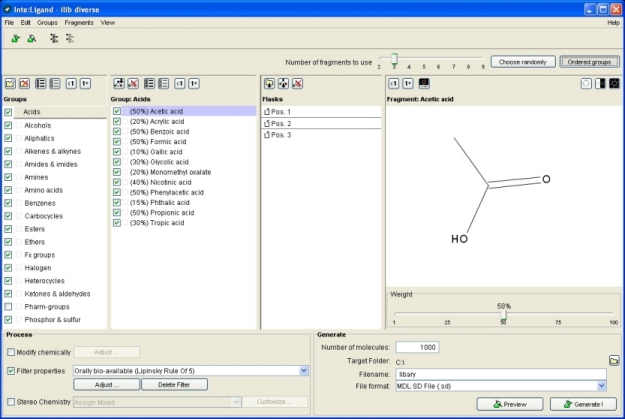
The ilib:diverse flasks view depicts the number of flasks and their contents. This view is only available in the ordered groups combination mode.
Defining the number of flasks
The number of flasks used for library generation corresponds to the value selected in the number of fragments to use scale within the combination mode panel.
Adding groups to flasks
Add the currently selected fragment group to the flask contents by selecting a flask and clicking on the  icon. Groups can also be added to flasks by drag & drop.
Adding fragments to flasks
To add a fragment to a flask, first select a fragment, then a flask and click on the icon. Fragments can also be added to flasks by drag & drop.
Use the SHIFT and CTRL keys to select multiple fragments.
Removing fragments and groups from flasks
Select the items you wish to delete and click on to remove fragments and groups from flasks.